Quick answer
One HaloPSA connection per organisation. Send GetCybr tasks to Halo as tickets, map Halo customers to GetCybr clients, and keep ticket and task status in step both ways.
The HaloPSA integration lets your team turn GetCybr tasks into HaloPSA tickets and keep the two in step. When a technician closes the ticket in Halo, the task in GetCybr moves to done. When someone moves the task in GetCybr, the ticket in Halo follows.
This guide walks through setup from start to finish. You need a HaloPSA administrator and a GetCybr admin.
What the integration does
| Direction | What syncs |
|---|---|
| GetCybr to HaloPSA | A ticket is created when you send a task. The task name becomes the ticket summary and the task description becomes the ticket details, along with the ticket type you choose and the mapped Halo customer. |
| GetCybr to HaloPSA | When the task status changes, the ticket status changes to match. When the task is done, its completion note is added as the Halo closure note. |
| HaloPSA to GetCybr | When the ticket status changes or the ticket is closed, the task status changes to match. The Halo closure note is added to the task. |
Only status is kept in sync after the ticket is created. The title and description are sent once, when the ticket is created.
What it does not do (yet)
- Sync comments, notes, time entries, attachments, priority, assignee or due dates
- Create GetCybr tasks from Halo tickets, or link an existing Halo ticket to a task
- Send tasks to Halo automatically. You choose which tasks become tickets.
- Connect more than one Halo instance to one GetCybr organisation
Before you start
You need:
- A HaloPSA agent account with administrator rights, to create the API application
- A GetCybr account with admin access, to set up integrations
- Your Halo instance URL, for example https://yourcompany.halopsa.com
Step 1: Create an API application in HaloPSA
GetCybr connects to Halo through the Halo API, using an application you create for it.
- In HaloPSA, open Configuration › Integrations › Halo API.
- Note the Tenant name shown on this page. You will need it in GetCybr.
- Select View Applications, then New.
- Name the application, for example GetCybr.
- Set Authentication Method to Client ID and Secret (Services).
- Set Login Type to Agent, and choose an agent with administrator rights to log in as.
- On the Permissions tab, give the application all permissions. GetCybr reads and updates tickets, reads customers, and creates its own status webhook in Halo, which needs configuration access.
- Save, then copy the Client ID and Client Secret. Halo shows the secret only once.
Step 2: Enter your credentials in GetCybr
- In GetCybr, open Settings and select the Integrations tab. You connect HaloPSA once for your whole organisation, not per client.
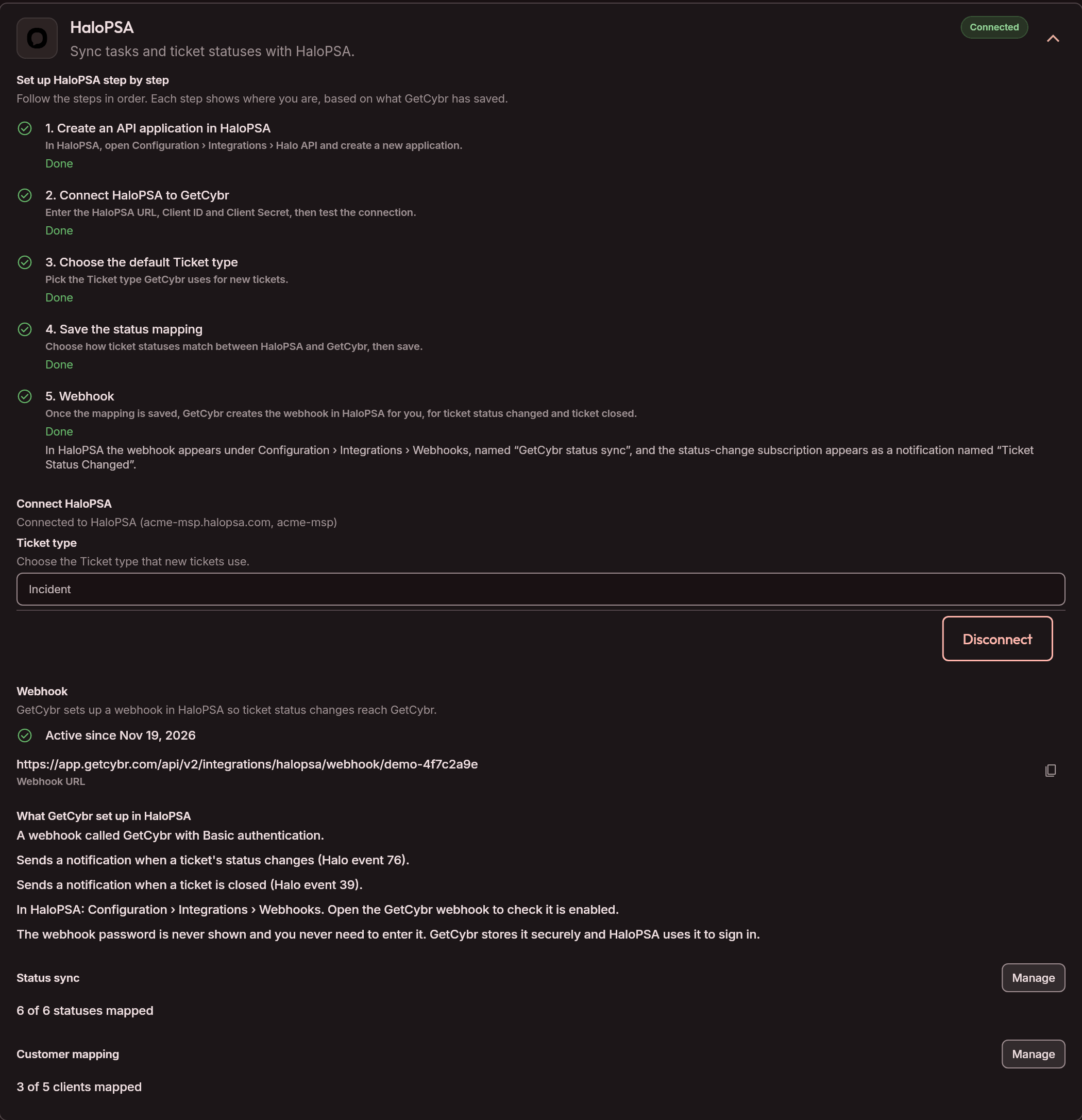
- Expand HaloPSA. The row shows a step-by-step checklist and starts the setup wizard.

- On the Credentials step, enter:
- Instance URL: your Halo address, for example https://yourcompany.halopsa.com
- Tenant: the tenant name from step 1
- Client ID and Client Secret: from the application you created
- Select Connect.
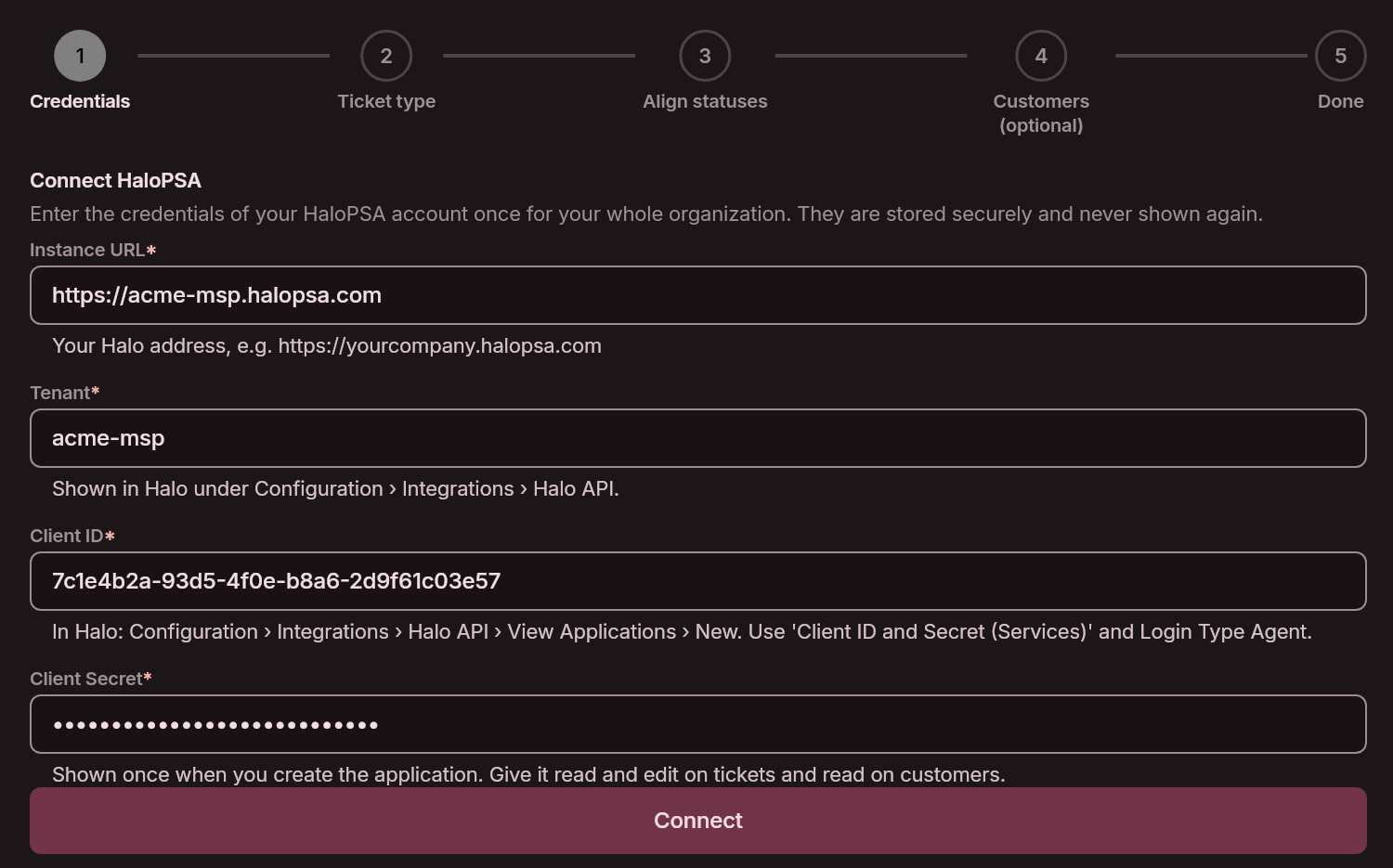
You enter the credentials once for your whole organisation. GetCybr stores the secret securely and never shows it again. Before saving anything, GetCybr signs in to Halo and reads your ticket types to check the connection works.
The instance URL must use https and a hostname, not an IP address.
Step 3: Choose a ticket type
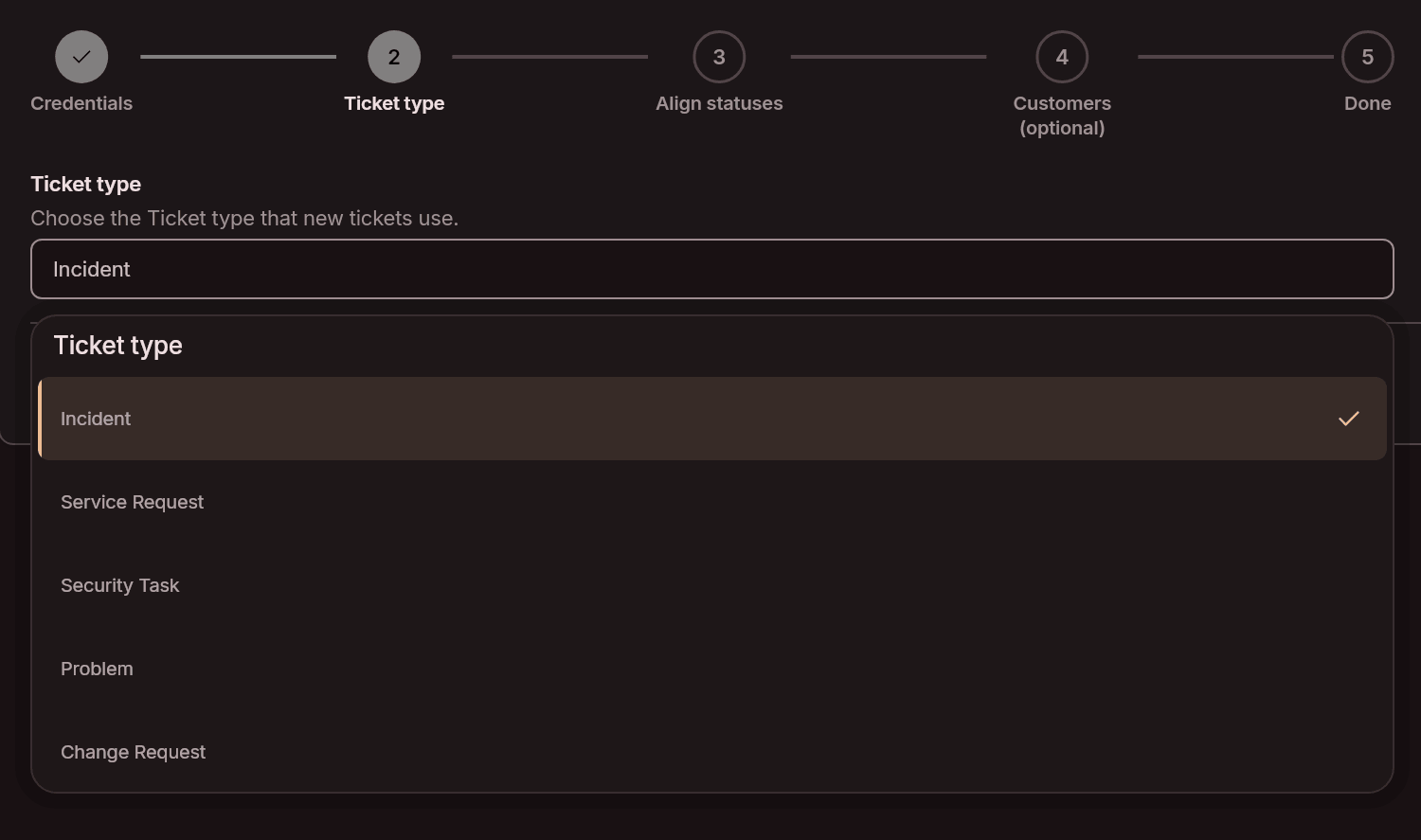
Choose the Halo ticket type that new tickets will use, for example a service request or a security task type you keep for compliance work. Only ticket types that can be used for tickets are listed. You need to choose one before you can continue.
Step 4: Align statuses
Statuses in Halo and GetCybr rarely have the same names, so you decide how they line up. The editor has two lists:
- When the ticket changes in HaloPSA: which GetCybr task status each Halo status moves the task to
- When the task changes in GetCybr: which Halo status each task status moves the ticket to
GetCybr opens the editor with a suggested mapping based on your Halo status names. For example, Closed and Resolved map to done, In Progress to in progress, On Hold and Waiting statuses to blocked, and New to to do. Review it, change anything that does not fit how your service desk works, then select Continue to save it. You can change the mapping later from Status sync › Manage on the connection.
Choose Don’t change the task or Don’t update the ticket for any status you want ignored.
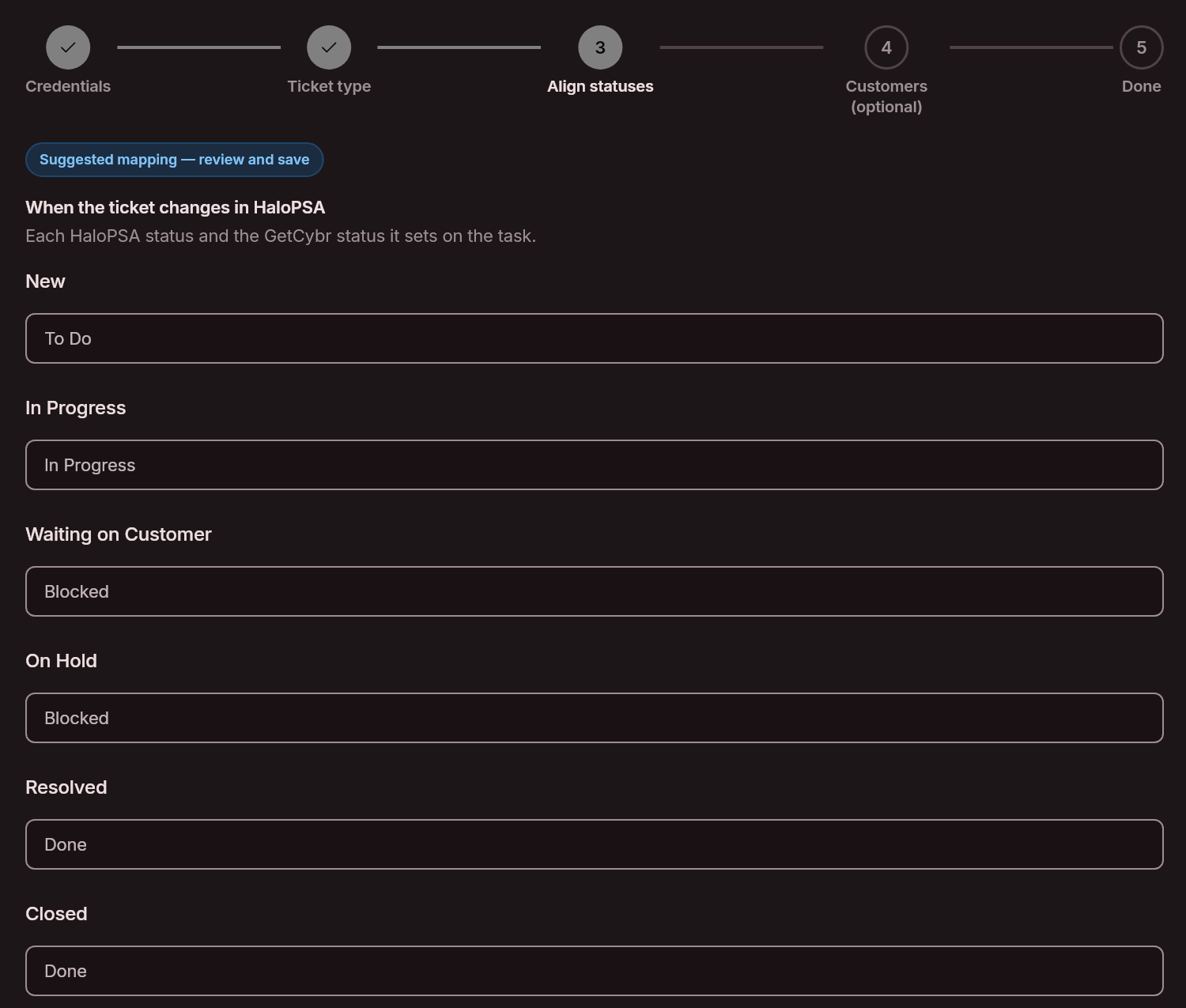
Saving the mapping also sets up the webhook in Halo for you. You do not need to copy a URL or secret into Halo. The webhook appears in Halo under Configuration › Integrations › Webhooks as GetCybr status sync. Halo uses it to tell GetCybr when a ticket’s status changes or a ticket is closed.
Step 5: Map Halo customers to GetCybr clients
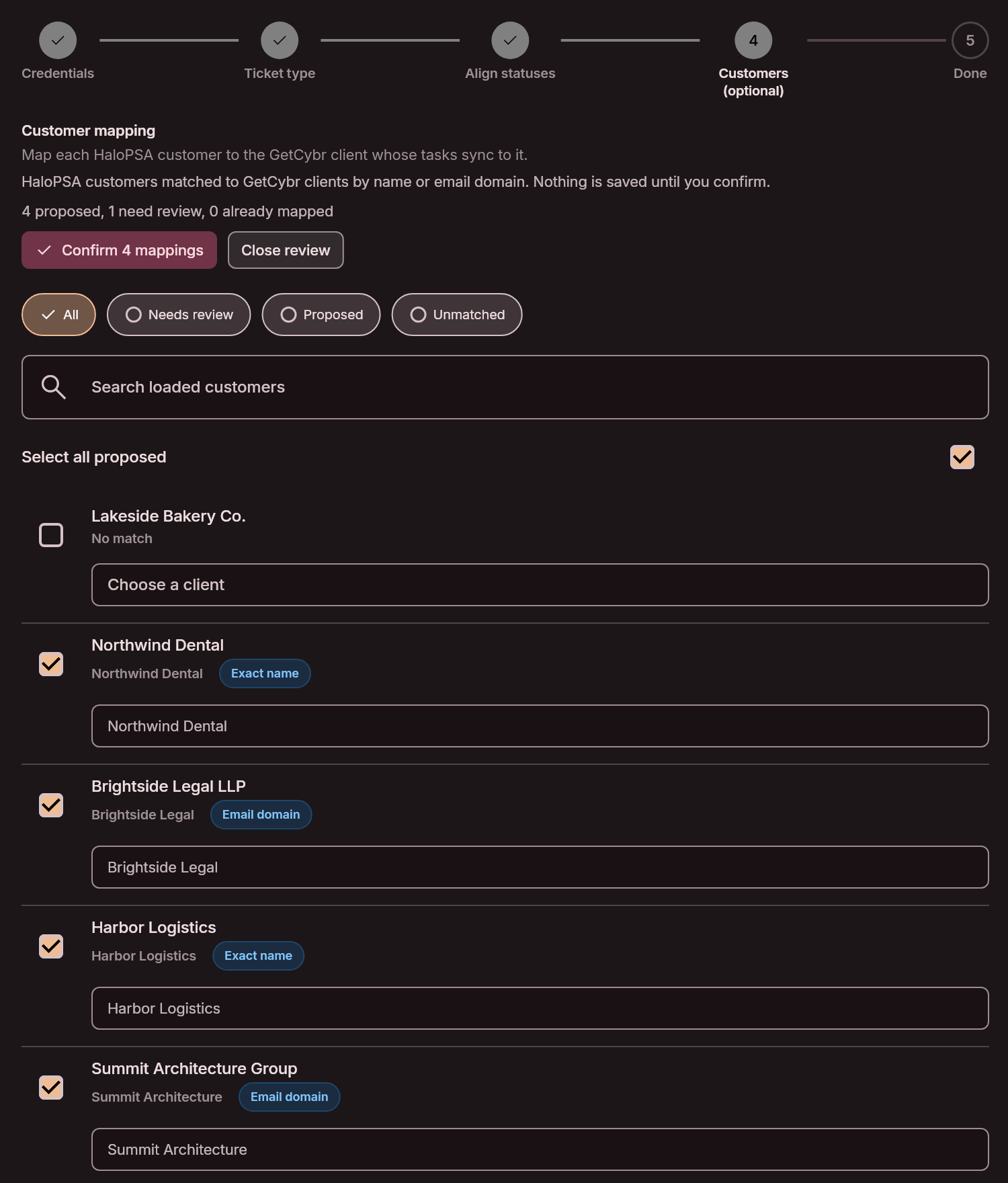
Each GetCybr client needs to be linked to its Halo customer, so tickets land on the right customer in Halo. The wizard lists this step as optional, but you cannot send a client’s tasks to Halo until that client is mapped.
- Select Review suggested matches to map many clients at once. GetCybr suggests matches by exact name or email domain and saves nothing until you confirm. Untick any suggestion that is wrong, pick a client for customers with no match, then select Confirm (for example Confirm 4 mappings).
- Or search for a Halo customer and choose the GetCybr client it belongs to.
Each Halo customer maps to one GetCybr client. Inactive Halo customers are not listed. You can come back to this later from Customer mapping › Manage on the connection.
Step 6: Check the connection
Select Continue, then Open connection on the Done step. The HaloPSA row now shows every checklist step as done, the Halo address and tenant you connected, the ticket type, and a Webhook section reading Active since the date the status sync started. Status sync and Customer mapping show how many statuses and clients are mapped, with Manage to change them.
Sending a task to HaloPSA
Open a task for a mapped client and select Send to HaloPSA in the task header.

The button shows Queued while GetCybr creates the ticket, then the Halo ticket number appears in its place. From then on, status changes flow both ways using your mapping.

A task can have one ticket, in one PSA. If the send fails, the task shows Ticket failed with Retry send. If GetCybr cannot tell whether Halo created the ticket, it shows Ticket status unknown. Check Halo before you select Send again, so you do not create a duplicate.
Troubleshooting
“HaloPSA rejected the Client ID or Secret.” Check that the application uses Client ID and Secret (Services) with Login Type Agent, and that it has the permissions in step 1. If you created a new secret in Halo, enter it again in GetCybr.
“We couldn’t reach that Halo address.” Check the instance URL. Use the address you sign in to Halo with, starting with https://.
The webhook shows “Setup failed”. The setup checklist in GetCybr shows the reason and how to fix it. The usual cause is an application without permission to create webhooks. Fix the permissions in Halo, then select Retry setup.
A task’s status did not change after the ticket changed. Check the status mapping. A Halo status set to Don’t change the task is ignored.
Disconnecting
Select Disconnect on the HaloPSA integration. GetCybr stops syncing, forgets the stored credentials and customer mappings, and removes its webhook from Halo. Tickets already created stay in Halo.
Who can do what
- Connect, change or disconnect HaloPSA: GetCybr admins
- Send a task to Halo: members of that client who can edit its tasks and integrations
See the integrations page for everything GetCybr connects to, or get a demo to see the HaloPSA workflow live.
Need a deeper answer?
Book a demo to see how GetCybr handles frameworks, evidence, and client reporting in practice.